Document Insights
Document Insights lets you upload a batch of documents, define the questions you care about, and use AI to extract answers across every document at once. Results appear in a spreadsheet-style matrix — one row per document, one column per question — with status flags, detailed explanations, per-document summaries, and CSV export.
Quick demo
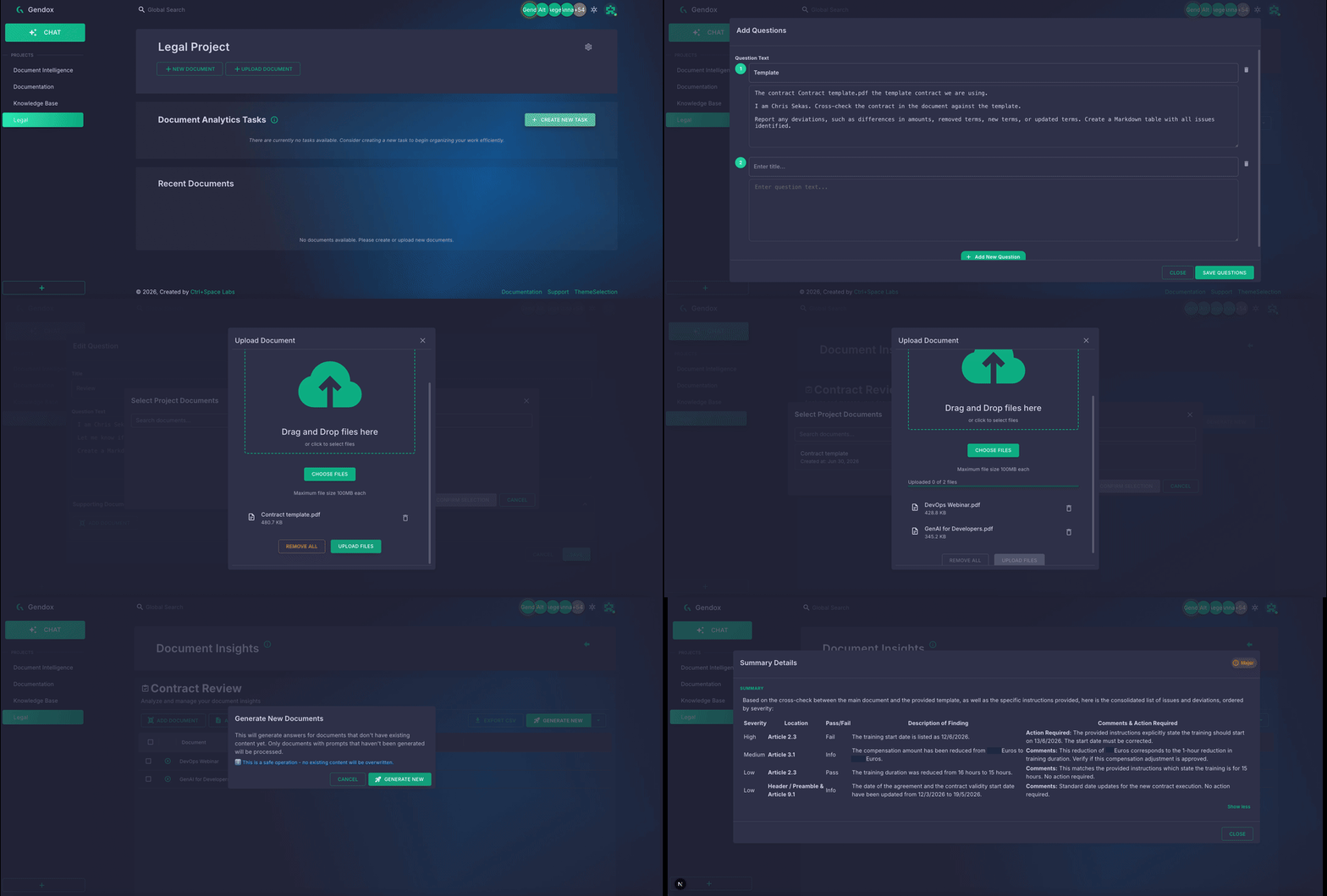
Example: Contract review
This walkthrough cross-checks two signed contracts against a template contract and runs a separate legal review on each document.
You will:
- Create a Document Insights task.
- Define two questions — one for template comparison, one for legal review.
- Attach the template as a supporting document.
- Upload the two contracts.
- Add per-document context (optional).
- Generate answers and inspect the results.
Create the task
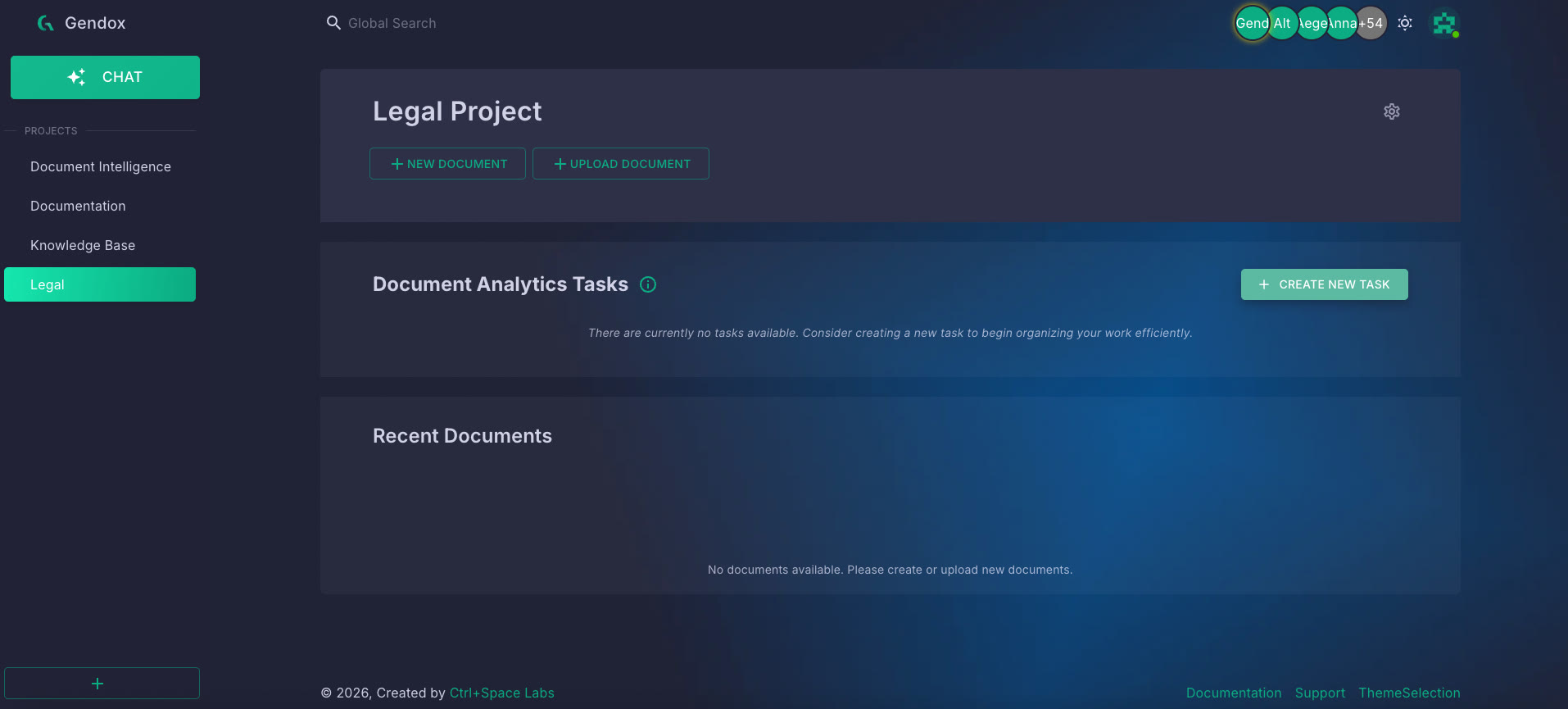
- Open your project and click CREATE NEW TASK on the project home page.
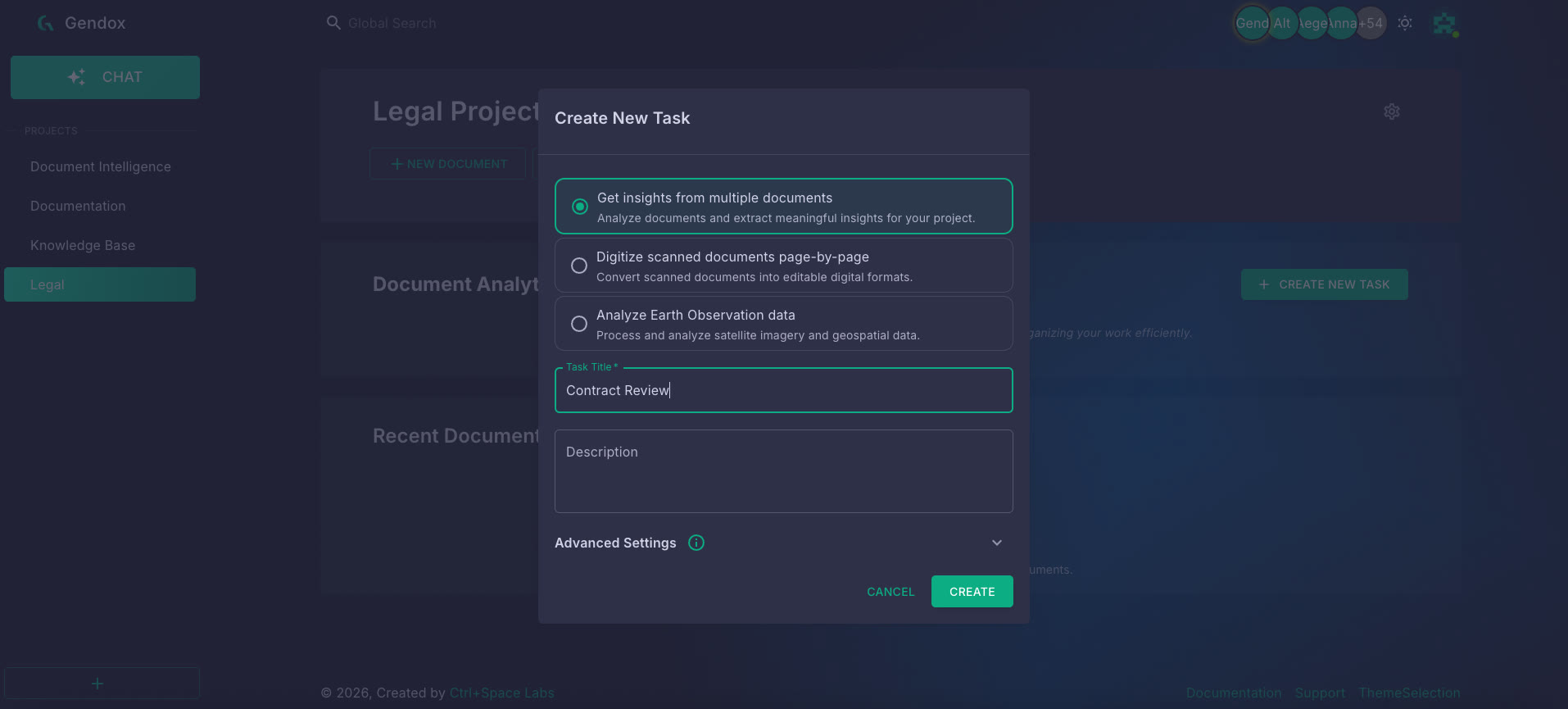
- Choose Get insights from multiple documents.
- Name the task (for example, Contract Review) and click CREATE.
Define questions
Click ADD QUESTIONS to open the questions panel. Each question becomes a column in the insights grid.
In this example we add two questions:
| Column | Purpose |
|---|---|
| Template | Cross-check each contract against the template and report deviations (amounts, removed terms, new terms, updated terms). |
| Review | Review the contract for unfavourable terms, missing clauses, and items that should be updated. |
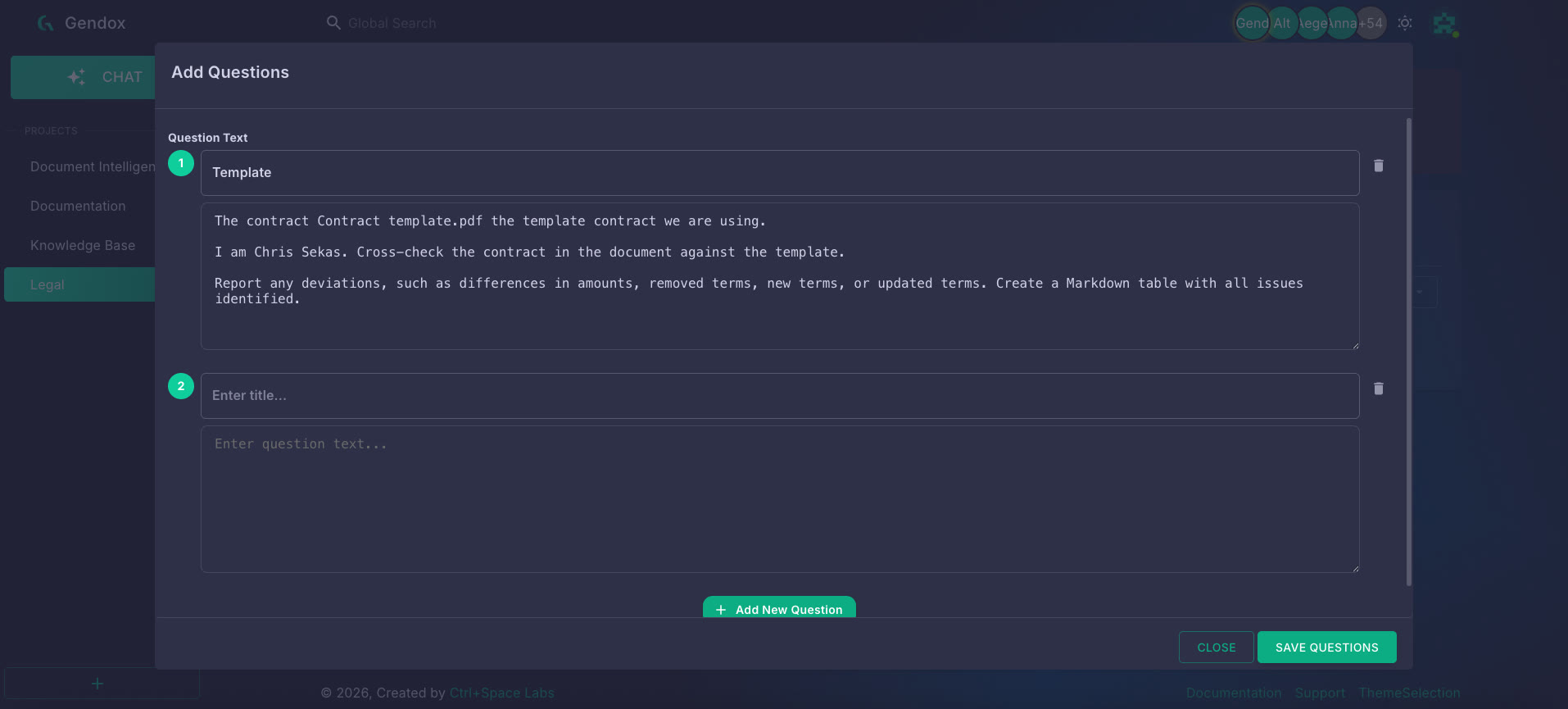
For the Template question, attach the template contract as a supporting document so the AI can reference it during analysis. Click ADD DOCUMENT inside the question editor, select or upload Contract template.pdf, then click SAVE.
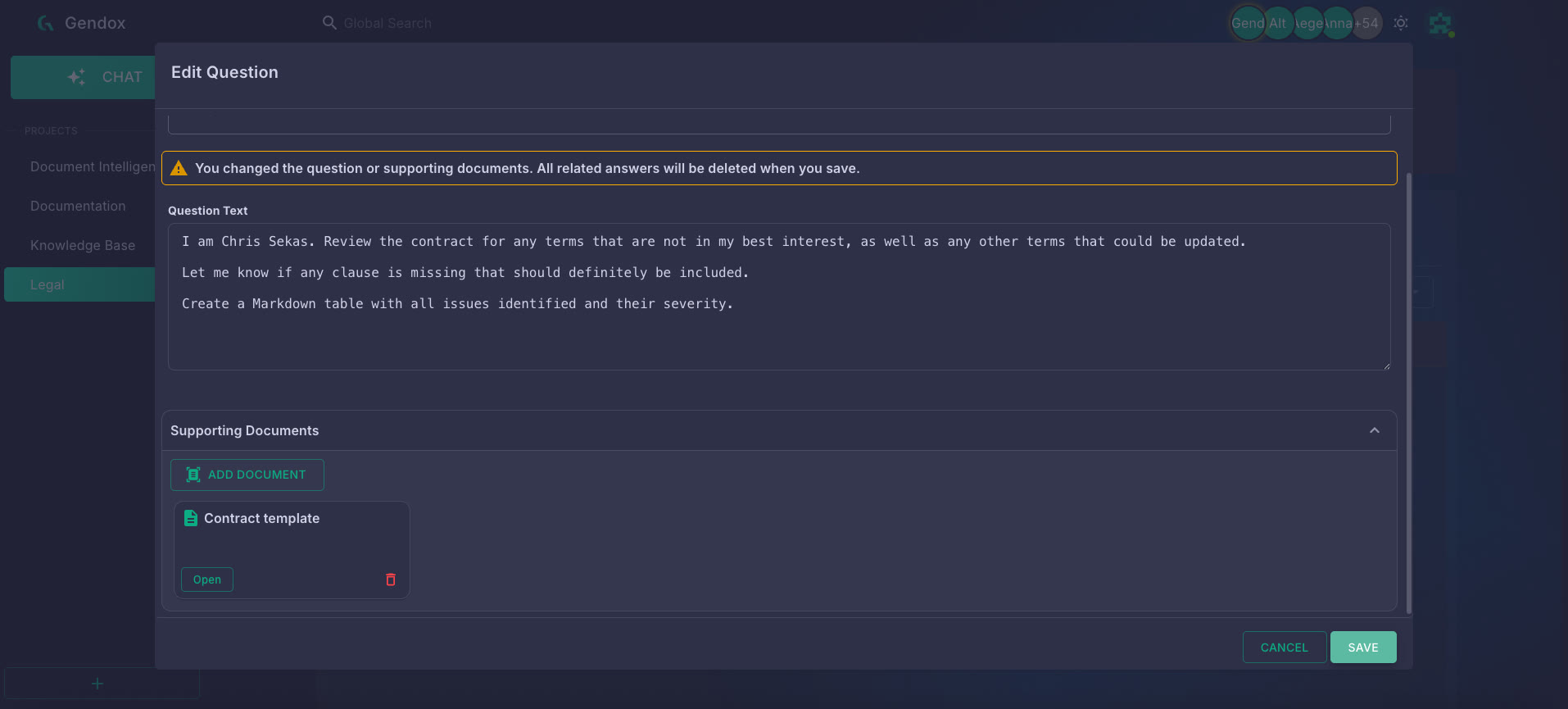
Click SAVE QUESTIONS when you are done.
Upload documents
Click ADD DOCUMENT and upload the contracts you want to analyse. In this example we upload two PDFs:
DevOps Webinar.pdfGenAI for Developers.pdf
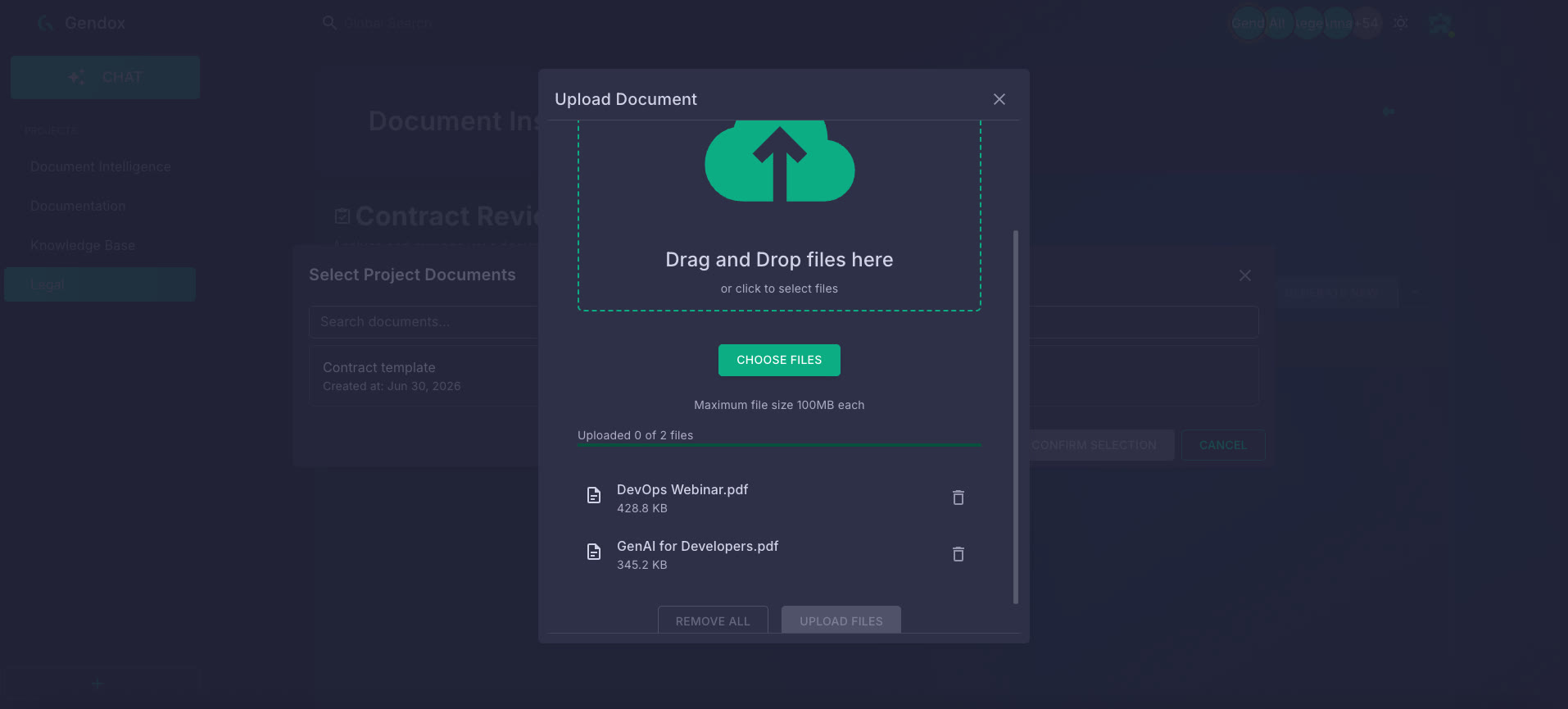
Each uploaded document becomes one row in the insights grid. Supported formats include PDF, Word (.docx/.doc), Excel (.xlsx/.xls), PowerPoint (.pptx), plain text, and more.
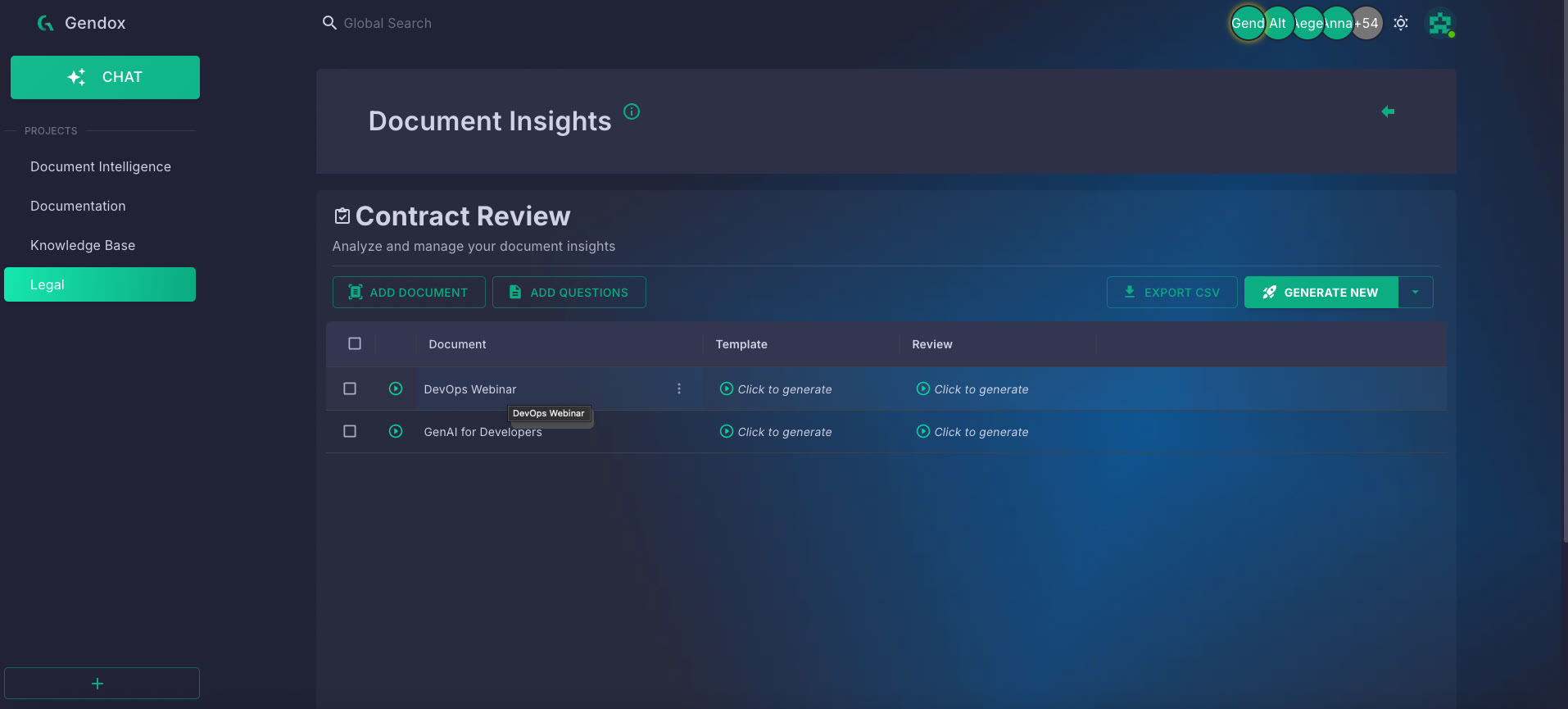
Add per-document context (optional)
Click a document name to open its detail panel. Use the Prompt field to add document-specific instructions — for example, agreed changes that differ from the template:
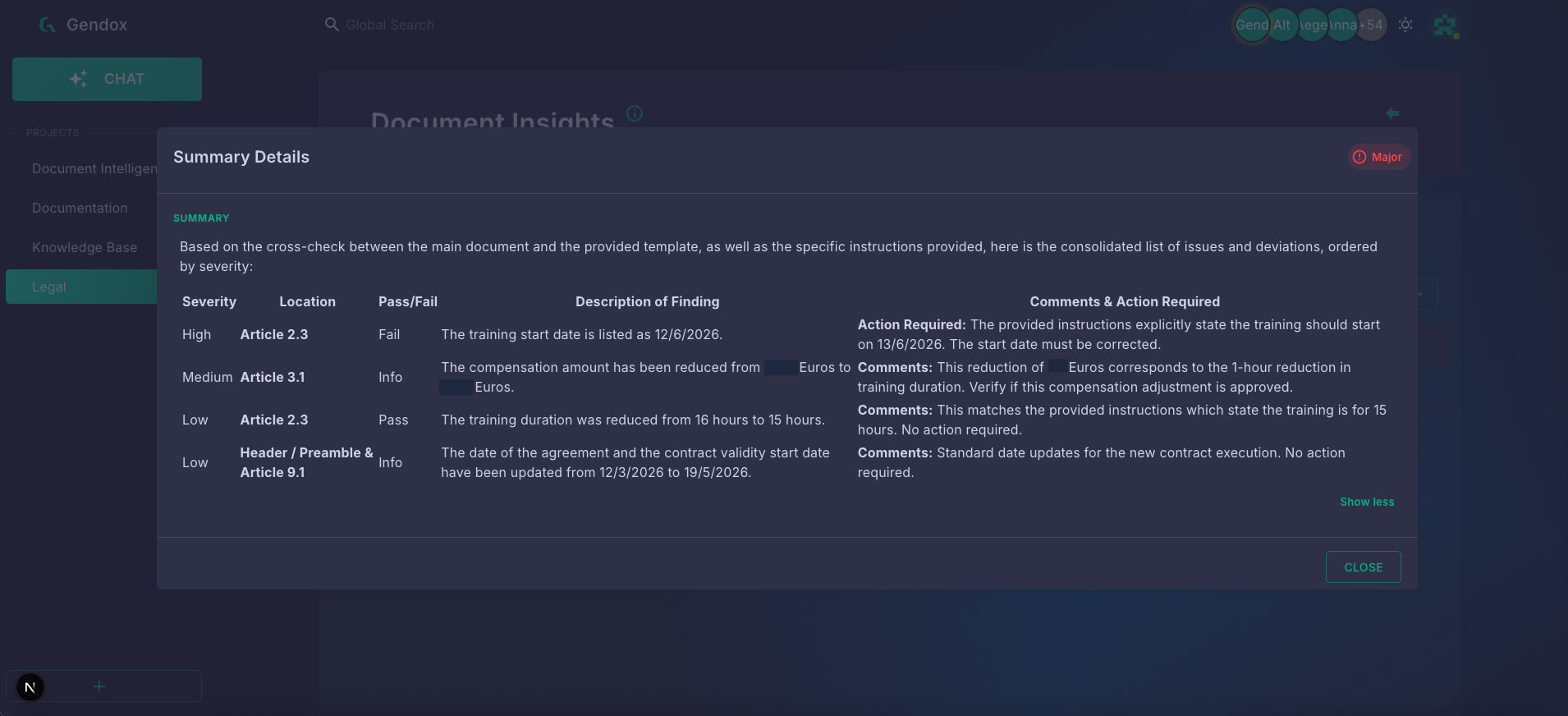
This is for 15 hours. It will start at 13/6/2026.
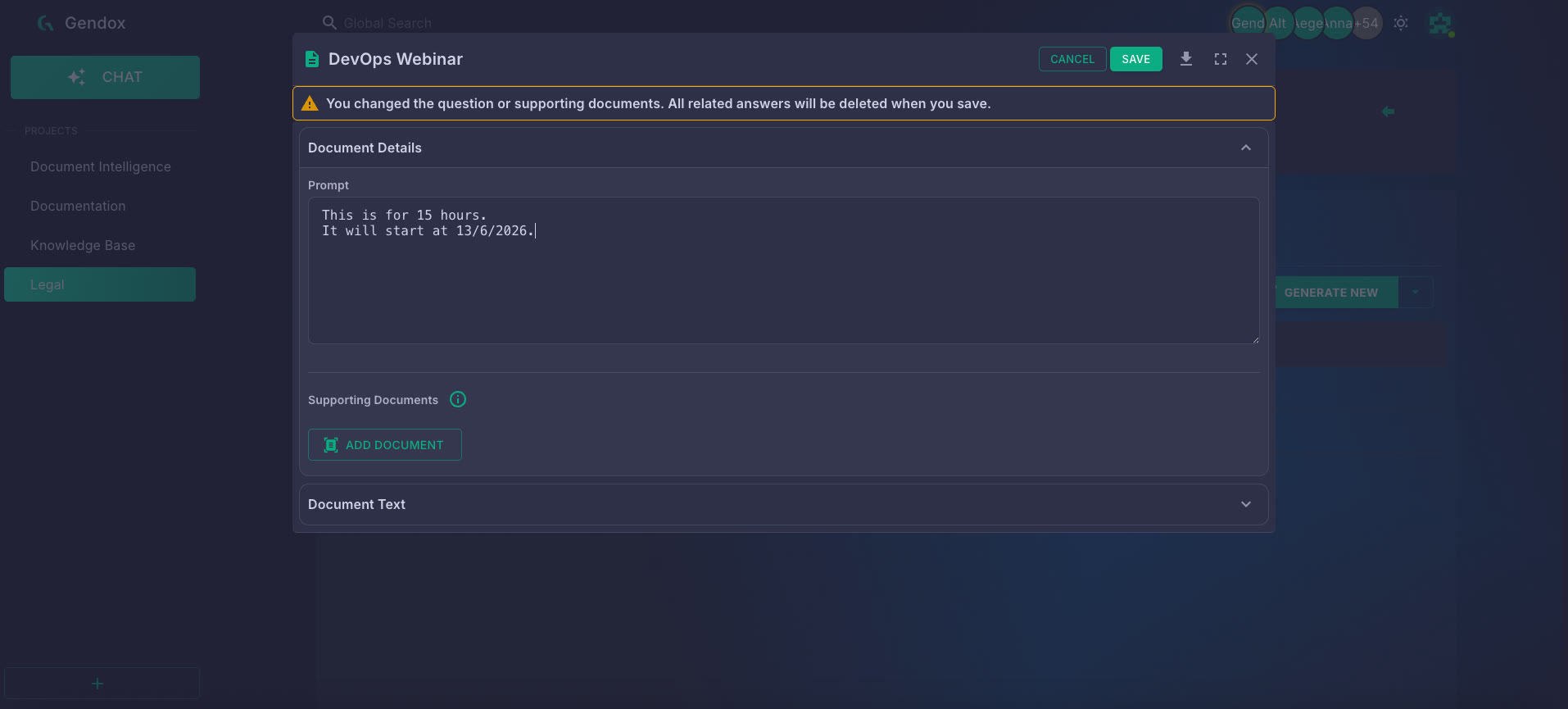
Saving changes to a document prompt or its supporting files will clear existing answers for that document.
Run generation
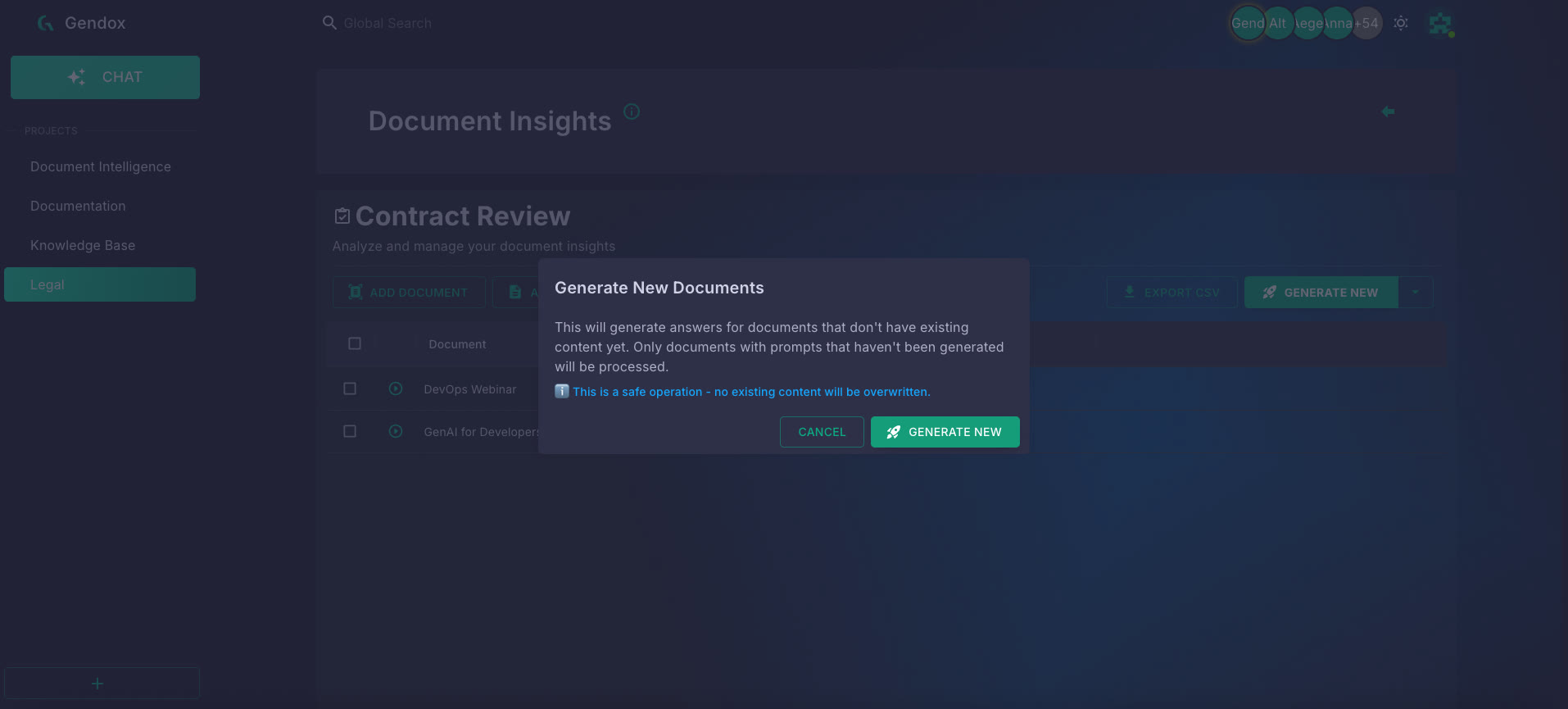
Click GENERATE NEW and confirm in the dialog. Gendox fills only cells that do not have an answer yet — existing content is not overwritten.
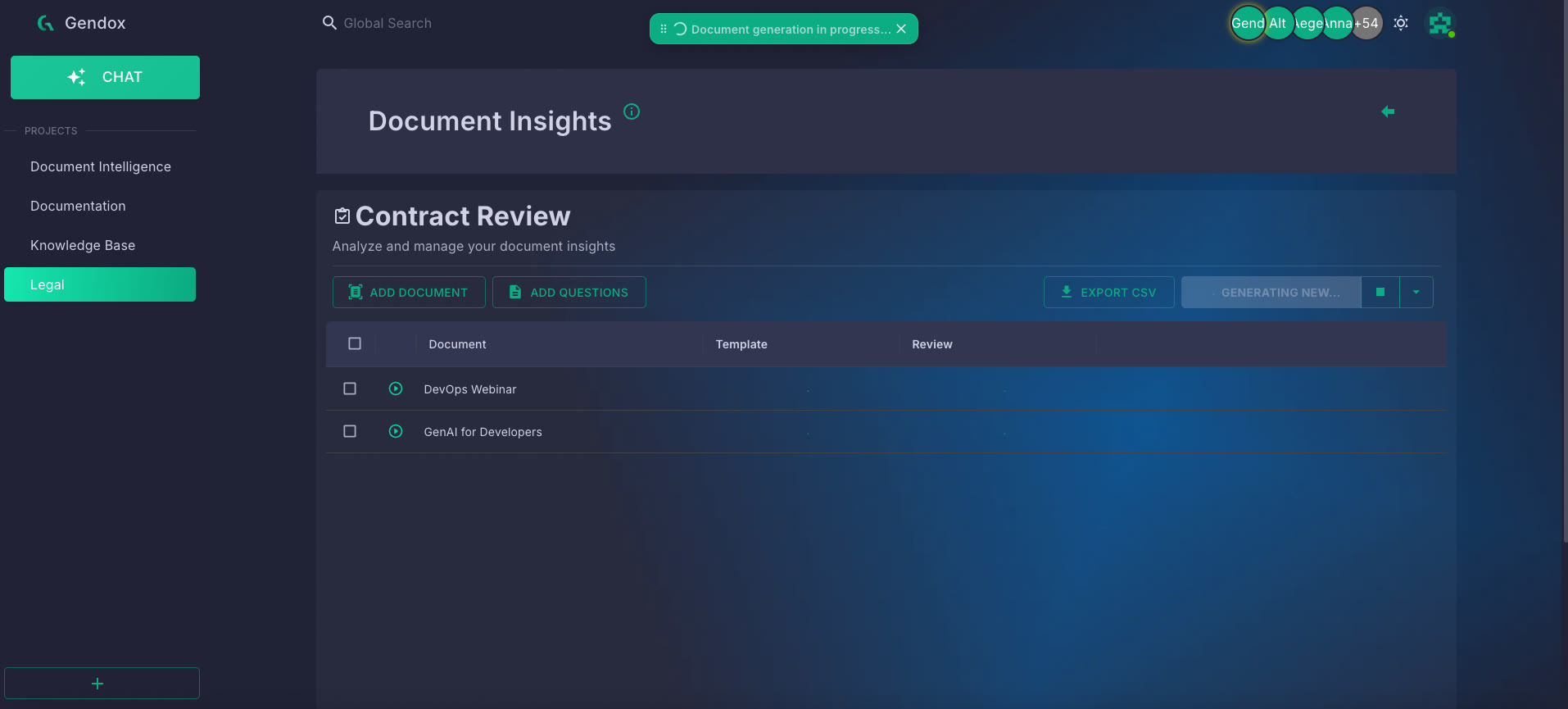
Generation runs as a background batch job. A progress indicator appears while it is running; click Stop to cancel early.
You can also use the Generate dropdown for other modes:
| Mode | Behaviour |
|---|---|
| Generate New | Fill only cells that have no answer yet. |
| Generate All | Regenerate all cells (overwrites existing answers). |
| Generate Selected | Regenerate answers only for the checked documents. |
Click an individual cell to regenerate a single answer.
Read results
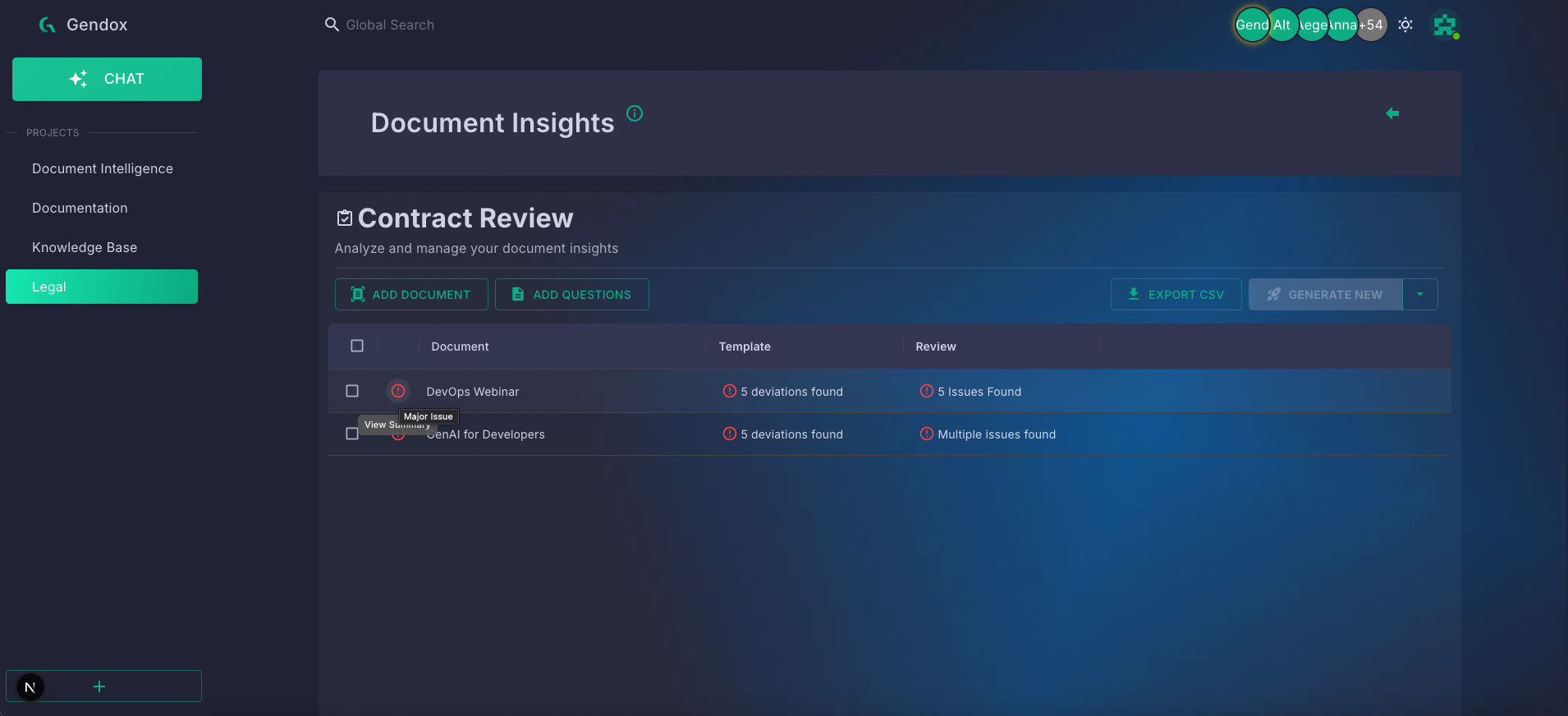
When generation completes, each cell shows a short answer, a colour-coded status flag, and a detailed explanation.
In our example:
- The Template column reports deviations found against the template (for example, 5 deviations found).
- The Review column reports legal review findings (for example, 5 Issues Found or Multiple issues found).
Hover a status flag and click View Summary to open the consolidated findings for that document.
Each cell in the grid contains:
- Answer Value — a short, concise answer.
- Description — a detailed markdown explanation (click the cell to expand).
- Status flag — a colour-coded indicator:
| Flag | Meaning |
|---|---|
| Info | Informational finding, no action required. |
| OK | Positive / compliant result. |
| Warning | Potential issue worth reviewing. |
| Minor Issue | Small problem identified. |
| Major Issue | Significant problem found. |
| Critical Issue | Serious non-compliance or risk. |
| N/A | Question not applicable to this document. |
Click the summary icon in the first column of a document row to view or regenerate its overall document summary.
Export to CSV
Click EXPORT CSV in the header to download the full matrix. You can also export results for a single document from the document detail panel.
Tips
- Add a task prompt (in task settings → Advanced Settings) to guide all AI answers with shared context or instructions.
- Attach supporting documents to individual questions when the question requires reference material that is not in the document being analysed — as we did with the contract template on the Review question.
- Use Generate Selected after editing a question to refresh only the affected rows without re-running the entire batch.
- Reorder questions by dragging them in the questions panel.