Integration AWS S3 Bucket Configuration
This guide outlines the steps to set up an AWS S3 bucket, create an SQS queue with the necessary permissions, configure S3 bucket event notifications, and set up the database to connect the bucket with a project.
1. Create an S3 Bucket and Folder
Step 1: Create an S3 Bucket
- Log into your AWS Management Console.
- Navigate to the S3 service.
- Click Create bucket.
- Enter a unique Bucket name (e.g.,
project-files-integration-with-gendox-development). - Select the appropriate AWS Region (e.g.,
eu-central-1). - Configure other settings as needed (versioning, encryption, etc.).
- Click Create bucket to finalize.
Step 2: Create a Folder in the S3 Bucket
- Once the bucket is created, go to the Buckets list and click on your newly created bucket.
- In the Objects tab, click Create folder.
- Enter a Folder name (e.g.,
project-files-integration-with-gendox-development). - Set any necessary permissions and configurations, and click Create folder.
2. Create an SQS Queue with Access Policy
Step 1: Create the SQS Queue
- Go to the SQS service in the AWS Management Console.
- Click Create Queue.
- Choose the Standard type.
- Enter a Queue Name (e.g.,
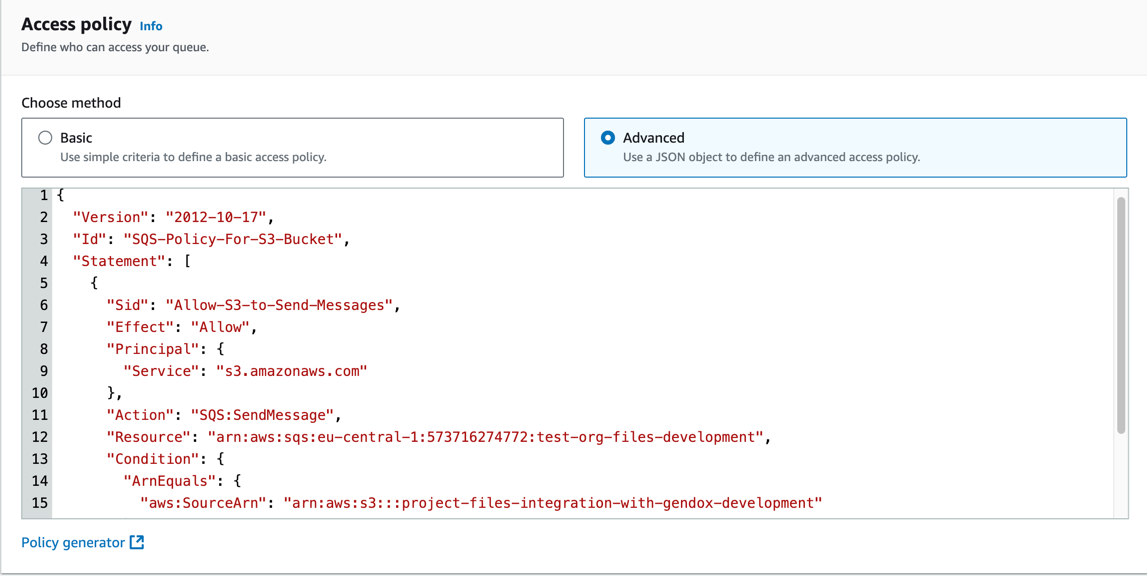
test-org-files-development). - Add Access policy to the queue to allow S3 to send messages to the queue. Here is an example policy:
{
  "Version": "2012-10-17",
  "Id": "SQS-Policy-For-S3-Bucket",
  "Statement": [
    {
      "Sid": "Allow-S3-to-Send-Messages",
      "Effect": "Allow",
      "Principal": {
        "Service": "s3.amazonaws.com"
      },
      "Action": "SQS:SendMessage",
      "Resource": "arn:aws:sqs:eu-central-1:573716274772:test-org-files-development",
      "Condition": {
        "ArnEquals": {
          "aws:SourceArn": "arn:aws:s3:::project-files-integration-with-gendox-development"
        }
      }
    }
  ]
}
 6. Configure other settings if needed, then click Create Queue.
3. Configure S3 Bucket Event Notification
- Go to your S3 bucket (
project-files-integration-with-gendox-development) in the AWS Management Console. - Navigate to the Properties tab.
- Scroll down to Event notifications and click Create event notification.
- Enter a Name for the notification (e.g.,
test-event). - In the Prefix field, enter the folder name (e.g.,
project-files-integration-with-gendox-development/).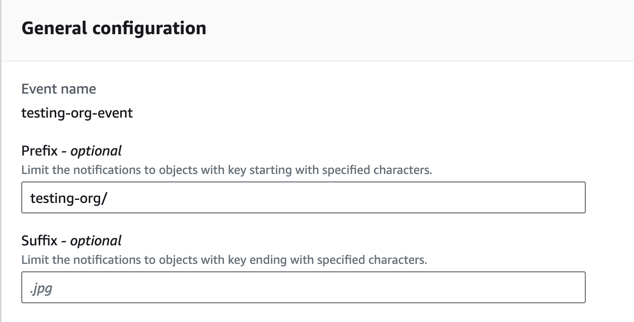
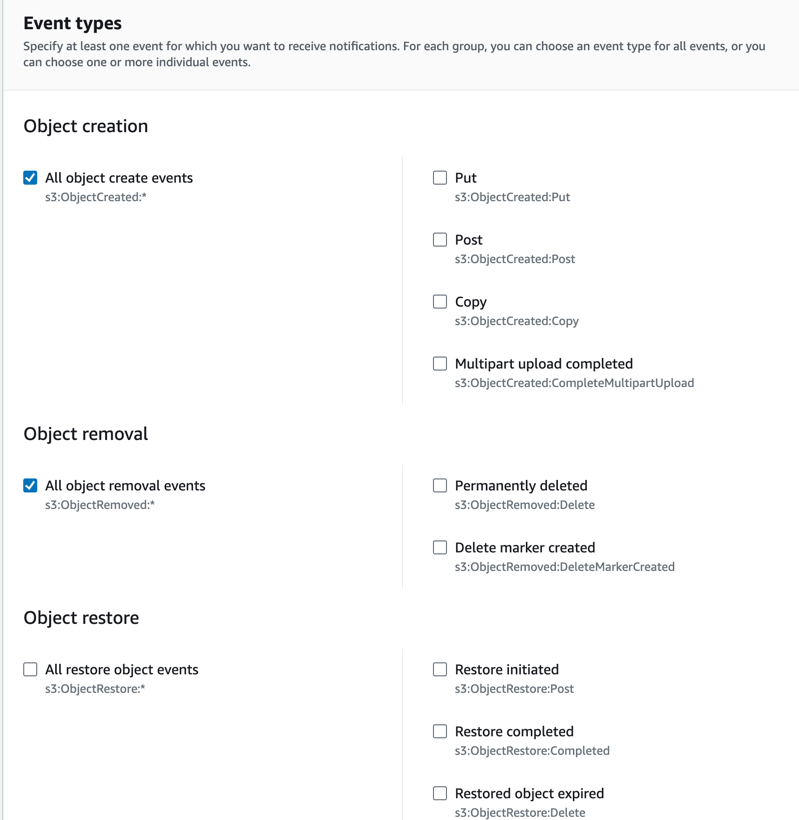
- In Event types, select the events to trigger notifications:
- All object create events
- All object removal events
- Under Destination, choose SQS Queue.
- Put you SQS queue ARN in the SQS queue field.
- Click Save changes to finalize the event notification setup.
4. Tell Gendox about the queue
The last step connects the queue to a project, so that the files arriving in the bucket become documents there.
POST /gendox/api/v1/organizations/{organizationId}/integrations
Content-Type: application/json
{
  "type": "AWS_S3_INTEGRATION",
  "projectId": "<your-project-id>",
  "queueName": "test-event",
  "runIntervalMinutes": 120
}
The fields:
- type — the name of the integration type, not its row id. The
typestable is filled by migrations, so the same type carries a different id in every database; the name is the only value a caller can know. - projectId — the project the files become documents in. It is required, and it must belong to the organization in the path. Creating the integration also turns on auto training for that project, so the documents are split and embedded as they arrive.
- queueName — the SQS queue from the previous step.
- runIntervalMinutes — how long to wait between passes. Leave it out and the integration runs on every pass of the poller; switch the integration off to stop it running on its own.
The call answers 201 with the integration, which starts with no last run. The
credentials for the bucket and the queue are read from the server's own AWS
configuration and are never part of this request.
Changing the interval afterwards, or switching the integration off, is done
through PUT .../integrations/{id}/schedule and PUT .../integrations/{id}/active.